 When you type in “Thingiverse” in your browser this screen will appear. The first option will be the website we will use. When you type in “Thingiverse” in your browser this screen will appear. The first option will be the website we will use. |  This will be what you see once you click. There will be a search bar that says “search Thingiverse”. This will be what you see once you click. There will be a search bar that says “search Thingiverse”. |
 Look up the object you would like to print. Look up the object you would like to print. |  Select the object you would like to print. Select the object you would like to print. |
 Select to download all files and it will start downloading. Notice the download happens automatically do not download any ads given!! Select to download all files and it will start downloading. Notice the download happens automatically do not download any ads given!! |  Click get started. If you have initialized Cura and added hackberry draft then you can skip to the image upload. Click get started. If you have initialized Cura and added hackberry draft then you can skip to the image upload. |
 Click agree. Click agree. |  Click next. Click next. |
 Click skip. Click skip. |  Click Non UltiMaker printer. Click Non UltiMaker printer. |
 Click add a non-network printer. Click add a non-network printer. |  Go down and click the Creality3D drop down arrow. Go down and click the Creality3D drop down arrow. |
 Select the Creality Ender-3/Ender-3 v2. Select the Creality Ender-3/Ender-3 v2. |  Click Next. Click Next. |
 Click skip. Click skip. |  Click Finish to finish initializing Cura. Click Finish to finish initializing Cura. |
 Select Generic PLA and the drop down arrow for nozzle size. Select the 0.6 mm Nozzle. Select Generic PLA and the drop down arrow for nozzle size. Select the 0.6 mm Nozzle. |  Select quality and change it to draft. Select quality and change it to draft. |
 Turn on supports and change placement to touching building plate. Turn on supports and change placement to touching building plate. |  Click save. Click save. |
 Select save as new custom profile. Select save as new custom profile. |  Name it HackBerry Draft and click save new profile. **You have now initialized Cura and set up HackBerry Draft. ** Name it HackBerry Draft and click save new profile. **You have now initialized Cura and set up HackBerry Draft. ** |
 Click the file icon. Click the file icon. |  Find and select you STL file. If you downloaded a ZIPPED folder then click extract. Find and select you STL file. If you downloaded a ZIPPED folder then click extract. |
 Your object should now appear. Your object should now appear. | 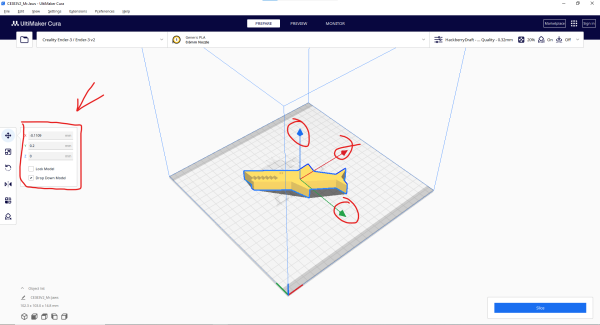 You can change the position of the object by its X, Y, and Z coordinates with the boxes or the arrows. Key bind “T” changes the formatting to move. You can change the position of the object by its X, Y, and Z coordinates with the boxes or the arrows. Key bind “T” changes the formatting to move. |
 You can change the size of the object by its X, Y, and Z coordinates with the boxes or the cubes. Key bind “S” changes the formatting to move. You can change the size of the object by its X, Y, and Z coordinates with the boxes or the cubes. Key bind “S” changes the formatting to move. |  You can change the rotation of the object by its X, Y, and Z coordinates with the arrows. Key bind “R” changes the formatting to move. You can change the rotation of the object by its X, Y, and Z coordinates with the arrows. Key bind “R” changes the formatting to move. |
 Select slice when done formatting. Select slice when done formatting. |  You can see the time to print, and the amount of filament needed to print. Select save to disk to get the G-Code for printing. **Make sure to save it somewhere you can get it from. ** You can see the time to print, and the amount of filament needed to print. Select save to disk to get the G-Code for printing. **Make sure to save it somewhere you can get it from. ** |
 Name your file and click save. Name your file and click save. |  You will go to hackberrylab.com/print and click connect to printers. You will go to hackberrylab.com/print and click connect to printers. |
 You will sign in as student with the login “student” and the password “marthaberry” to upload your image to the printer. You will sign in as student with the login “student” and the password “marthaberry” to upload your image to the printer. |  You will ask a Lab Assistant to help find a printer. They are dressed in Pink. You will ask a Lab Assistant to help find a printer. They are dressed in Pink. |
 You will then select the printer they tell you to. You will then select the printer they tell you to. |  You will select upload G-Code and then find the G-Code of the object you saved and upload it. You will select upload G-Code and then find the G-Code of the object you saved and upload it. |
 You will then ask a Lab Assistant to help start the print. You will then ask a Lab Assistant to help start the print. |  The print will start but make sure the print gets started and doesn't have an error. **If an error occurs repeat the upload process. ** The print will start but make sure the print gets started and doesn't have an error. **If an error occurs repeat the upload process. ** |
 Make sure to put your name on a sticky note and leave it at the printer you are using. Make sure to put your name on a sticky note and leave it at the printer you are using. |  When the printer is done the object will be placed in a cubby with a sticky note that has your name on it. When the printer is done the object will be placed in a cubby with a sticky note that has your name on it. |

 When you type in “Thingiverse” in your browser this screen will appear. The first option will be the website we will use.
  This will be what you see once you click. There will be a search bar that says “search Thingiverse”.
  Look up the object you would like to print.
  Select the object you would like to print.
  Select to download all files and it will start downloading. Notice the download happens automatically do not download any ads given!!
  Click get started. If you have initialized Cura and added hackberry draft then you can skip to the image upload.
  Click agree.
  Click next.
  Click skip.
  Click Non UltiMaker printer.
  Click add a non-network printer.
  Go down and click the Creality3D drop down arrow.
  Select the Creality Ender-3/Ender-3 v2.
  Click Next.
  Click skip.
  Click Finish to finish initializing Cura.
  Select Generic PLA and the drop down arrow for nozzle size. Select the 0.6 mm Nozzle.
  Select quality and change it to draft.
  Turn on supports and change placement to touching building plate.
  Click save.
  Select save as new custom profile.
  Name it HackBerry Draft and click save new profile. **You have now initialized Cura and set up HackBerry Draft. **
  Click the file icon.
  Find and select you STL file. If you downloaded a ZIPPED folder then click extract.
  Your object should now appear.
  You can change the position of the object by its X, Y, and Z coordinates with the boxes or the arrows. Key bind “T” changes the formatting to move.
  You can change the size of the object by its X, Y, and Z coordinates with the boxes or the cubes. Key bind “S” changes the formatting to move.
  You can change the rotation of the object by its X, Y, and Z coordinates with the arrows. Key bind “R” changes the formatting to move.
  Select slice when done formatting.
  You can see the time to print, and the amount of filament needed to print. Select save to disk to get the G-Code for printing. **Make sure to save it somewhere you can get it from. **
  Name your file and click save.
  You will go to hackberrylab.com/print and click connect to printers.
  You will sign in as student with the login “student” and the password “marthaberry” to upload your image to the printer.
  You will ask a Lab Assistant to help find a printer. They are dressed in Pink.
  You will then select the printer they tell you to.
  You will select upload G-Code and then find the G-Code of the object you saved and upload it.
  You will then ask a Lab Assistant to help start the print.
  The print will start but make sure the print gets started and doesn't have an error. **If an error occurs repeat the upload process. **
 Make sure to put your name on a sticky note and leave it at the printer you are using.
 When the printer is done the object will be placed in a cubby with a sticky note that has your name on it.